
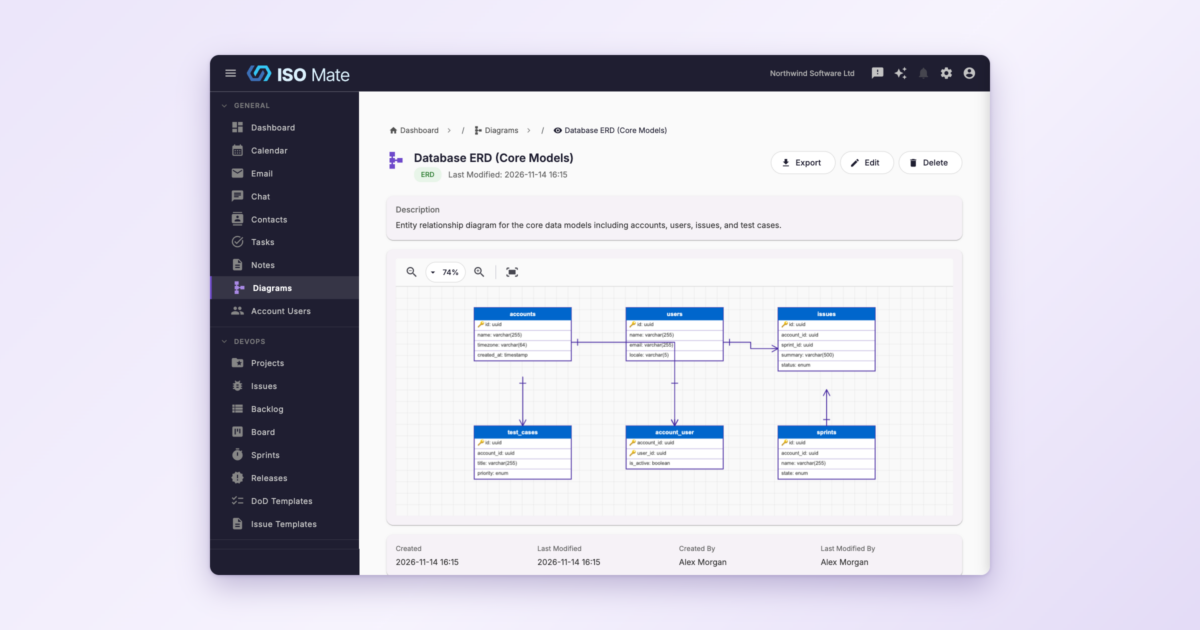
The Diagram Builder in ISO Mate is a canvas editor for UML, ERD, UI mockups, network, cloud infrastructure, and general diagrams. You reach it from the Diagrams item in the sidebar General group, where the Create button opens a template picker and then the canvas. You add shapes by dragging them from the palette, connect them, style them, and export the result as PNG, PDF, or JSON.
Creating a diagram
- Open Diagrams from the sidebar General group.
- Click Create to open the template dialog. When AI creation is enabled, the caret next to the button reveals a Create with AI option.
- Enter a diagram name and choose a Type: General, ERD, UML, UI Mockup, Mobile UI, Network, or Cloud infrastructure.
- Pick a starting template, either a blank canvas or a starter layout for the type.
- Click Create Diagram to open the canvas editor.
Create a diagram with AI
When AI creation is enabled, choose Create with AI and describe the diagram you want in plain language. For example: “An ERD for customers, orders and order lines, one customer has many orders”. To learn how Create with AI works across ISO Mate, see Creating Records with AI.
UML and ERD diagrams are now filled in properly:
- ERD entities: each entity gets named columns with data types, primary keys, and foreign keys.
- UML classes and interfaces: each one gets attributes and methods with their visibility.
- Connectors: each connector carries a UML relationship type (association, aggregation, composition, inheritance, implementation, or dependency) or an ERD cardinality (one to one, one to many, many to one, or many to many).
Shapes grow to fit their rows or members, and the automatic layout leaves room for taller shapes.
Refine a diagram with AI
On the diagram detail page, choose Refine with AI and describe the change in plain language, for example to rename a shape, add or remove a shape, or reconnect two shapes. ISO Mate shows a before and after preview of the canvas, and nothing is saved until you review it and choose Confirm change. The diagram type stays the same, the thumbnail is regenerated the next time you save the diagram in the editor, and Refine with AI uses your own permissions. To learn more, see Refining Records with AI.
Adding shapes
- Drag from the palette: pick a shape in the palette and drag it onto the canvas to place it.
- Basic shapes: rectangles, ellipses, diamonds, and text.
- Category shapes: dedicated shapes for UML, ERD, UI mockups, mobile UI, network, and cloud infrastructure diagrams.
- Edit text: double-click a shape to edit its label.
Connecting shapes
- Hover over a shape to reveal its connection points (top, bottom, left, right).
- Drag from a connection point to another shape’s connection point.
- Choose the connector type: Straight, Orthogonal (right-angle), or Curved.
- Drag a connector’s waypoints to adjust its routing.
Styling and arranging
- Properties panel: change fill, border, and text styling for a selected shape or connector.
- Group and layer: group shapes to move them as a unit, and bring shapes to front or send them to back.
- Canvas controls: zoom with the wheel or controls, pan across the canvas, undo and redo, and toggle the grid with optional snap to grid.
- Delete: select a shape or connector and press Delete, or use the toolbar.
Exporting and importing
From the diagram list or the editor, export a diagram as a PNG image, a PDF document, or a JSON file that captures the full layout. You can also import a diagram from a JSON file to bring it back into the builder.
Map out your systems visually with a 14-day free trial of ISO Mate.