
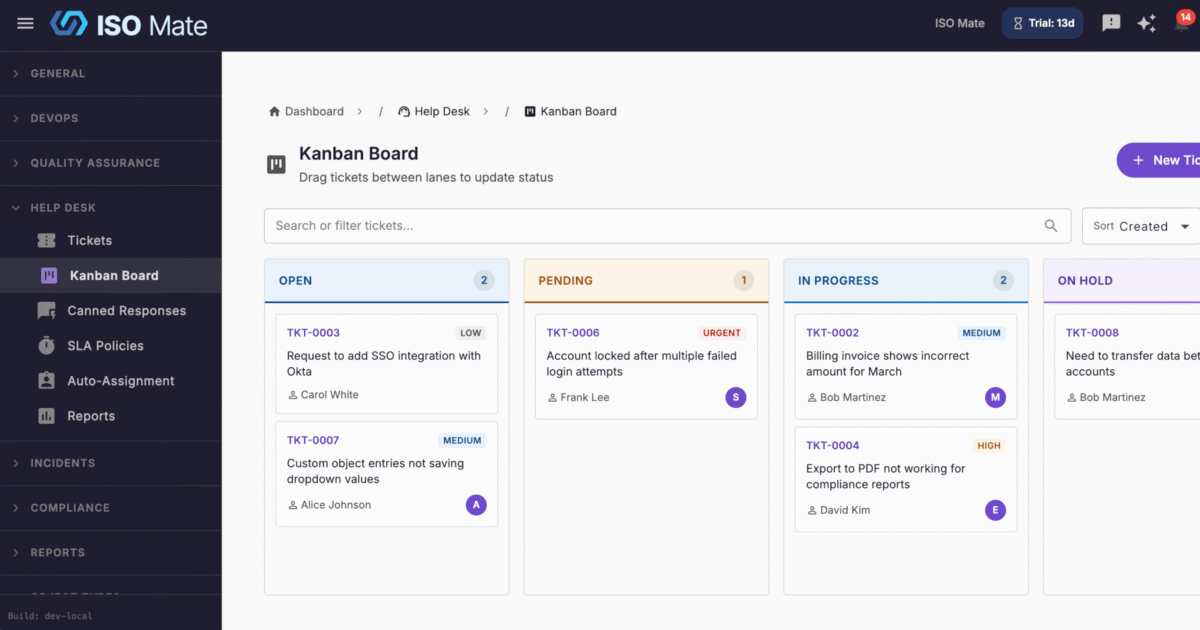
Complete Support Ticket System
ISO Mate’s Help Desk provides a fully integrated support ticket system. Manage customer requests, enforce service level agreements, automate agent assignment, and measure customer satisfaction, all without leaving the platform.
Ticket Management
Create and track support tickets with structured fields including subject, description, status, priority, category, channel, and due date. Each ticket receives a unique reference number (e.g., TKT-001) for easy identification. Tickets support tagging for flexible categorization beyond the built-in categories.
Ticket Statuses
Tickets progress through six statuses that reflect a complete support lifecycle:
- Open: New or reopened tickets awaiting attention
- Pending: Waiting for customer response (pauses the SLA clock)
- In Progress: Actively being worked on by an agent
- On Hold: Temporarily paused for external reasons (pauses the SLA clock)
- Resolved: Solution provided, awaiting confirmation
- Closed: Ticket completed and archived
Priority Levels
Classify tickets by urgency: Urgent, High, Medium, or Low. Priority levels drive SLA target calculations and help agents focus on the most critical requests first.
Categories
Organize tickets into categories for routing and reporting: General, Billing, Technical, Account, Feature Request, Bug Report, and Other. Categories integrate with auto-assignment rules for automatic routing.
Channels
Track how each request was received: Email, Web, Phone, Chat, or Internal. Channel tracking helps you understand where your support volume originates and appears in the channel distribution report.
Conversation Thread
Each ticket has a threaded conversation view with three message types:
- Replies: Public messages visible to both agents and the requester
- Internal Notes: Private messages visible only to agents, useful for collaboration and handoff context
- System Messages: Automated entries for status changes, merges, and other lifecycle events
Replies and notes support file attachments (up to 10 MB per file). Agents can download or preview image attachments directly in the conversation view.
Canned Responses
Speed up agent replies with pre-written response templates. Create canned responses with a title, body, and optional category. When composing a reply, search canned responses by keyword and insert them with a single click. Canned responses are shared across the account so the entire team benefits from consistent messaging.
Agent Assignment and Auto-Assignment
Assign tickets to team members manually, or let the system handle it automatically. Auto-assignment rules support two methods:
- Round Robin: Distributes tickets evenly across a pool of agents in rotation
- Category Based: Routes tickets to specific agents based on the ticket category (e.g., all Billing tickets go to the finance team)
Rules are evaluated in priority order, and the first matching rule is applied. Enable or disable individual rules without deleting them.
SLA Policies
Define Service Level Agreement policies to set response and resolution time targets per priority level. Each SLA policy includes:
- First response time targets (in minutes) per priority
- Resolution time targets (in minutes) per priority
- Business hours configuration with start time, end time, and working days
- Timezone setting for accurate business hour calculations
Mark one policy as the default to apply it automatically to new tickets. The SLA clock pauses when a ticket enters Pending or On Hold status and resumes when it returns to an active state. SLA breach indicators appear on the ticket list and detail pages so agents can prioritize accordingly.
Kanban Board
Visualize your ticket queue on a drag-and-drop Kanban board. Columns represent ticket statuses (Open, Pending, In Progress, On Hold, Resolved, Closed). Drag tickets between columns to update their status instantly. Filter the board by priority, category, channel, or assigned agent using the token search bar. Each card shows the ticket reference, subject, priority badge, requester name, and SLA status indicator.
Ticket Merging
Merge duplicate tickets into a single primary ticket. When you merge, all replies from the secondary ticket are moved to the primary ticket, the secondary ticket is closed with a reference to the merge, and system messages are added to both tickets for a clear audit trail.
Watchers
Add team members as watchers on a ticket so they receive notifications about new replies and status changes. Watchers provide visibility without requiring direct assignment.
Entity Linking
Link tickets to related records across the platform. Supported link types include Issues, Tasks, and Incidents. Linking provides cross-module traceability so agents can see related development work, tasks, or incidents directly from the ticket detail page.
Real-Time Collaboration
See which agents are currently viewing a ticket with presence indicators. Typing indicators show when another agent is composing a reply, preventing duplicate responses and improving team coordination.
Requester Portal
Each ticket generates a unique access link that can be shared with the requester. The portal allows requesters to view their ticket status, read the conversation thread (excluding internal notes), and submit replies. Replies from the portal automatically reopen Pending or Resolved tickets to Open. The portal includes captcha protection and honeypot fields to prevent spam submissions. The portal displays your account logo for branded communication.
CSAT Surveys
Measure customer satisfaction with automated surveys. When a ticket is resolved, a satisfaction survey is sent to the requester via email. The survey uses a 1 to 5 star rating scale with an optional comment field. Surveys include expiration dates and captcha protection. Results feed into the CSAT report for tracking satisfaction trends over time and by agent.
Audit Logging
Every ticket action is automatically logged: creation, status changes, assignment changes, replies, notes, merges, watcher additions, and entity link changes. The audit log provides a complete timeline of all activity on each ticket for accountability and compliance.
Bulk Operations
Select multiple tickets and perform bulk updates to status, priority, category, or assigned agent. Bulk delete tickets that are no longer needed. Clear your selection or select all with a single click.
Presets and SLA Filters
Quickly filter your ticket list with built-in presets: My Open Tickets, Urgent Unassigned, and SLA Breaching. Filter by SLA status (On Track, Breaching, or Breached) to focus on tickets that need immediate attention.
Email-to-Ticket Conversion
Convert incoming emails into support tickets automatically using workflow automation. Set up an Email trigger workflow with the Create Help Desk Ticket action to route emails from shared mailboxes into the ticket queue. The system automatically matches sender email addresses to existing contacts or creates new contact records. Use conditions and pattern matching to categorize and prioritize tickets based on email subject, sender, or content.
Email Auto-Responder
Combine email-to-ticket workflows with a second workflow that triggers when a Ticket is created and sends a confirmation email to the requester. This creates a complete auto-responder flow: incoming email creates a ticket, and the requester immediately receives an acknowledgment with their ticket reference number.
Help Desk Reports
Gain insights into your support operations with six dedicated report sections:
- Overview: Total tickets, open tickets, average resolution time, and average first response time
- Trends: Ticket volume over time, distribution by status, priority, and category
- Agent Performance: Tickets handled, average resolution time, and average CSAT score per agent
- SLA Compliance: First response and resolution compliance percentages by priority level
- CSAT: Average satisfaction score, rating distribution, scores by agent, and satisfaction trends over time
- Channels: Ticket volume and average resolution time by channel
Filter all reports by date range. Export the complete report to CSV or PDF for stakeholder presentations and audits.
Export
Export your ticket list to CSV or PDF with current filters applied. Reports also support CSV and PDF export for offline analysis and sharing.
Notifications
Agents receive real-time notifications for ticket assignments, new replies (including replies from the requester portal), status changes, and SLA breach warnings. Notification preferences can be customized per user under the Help Desk category.
Permissions
Help Desk access is controlled through role-based permissions: ticket.view, ticket.create, ticket.update, and ticket.delete. Administrators can configure which roles have access to ticket management, SLA policies, canned responses, and auto-assignment rules through the role management interface.
Knowledge Base
- Ticket Merging, Watchers, and Entity Linking
- Help Desk Permissions and Roles
- Help Desk Reports and Analytics
- Setting Up Email-to-Ticket Workflows
- Setting Up Email Auto-Responder Workflows
- Requester Portal and CSAT Surveys
- Using Canned Responses
- Using the Help Desk Kanban Board
- Setting Up Auto-Assignment Rules
- Managing Help Desk Tickets
- Configuring SLA Policies